How to clean a voice memo in NoisyNo — 5 steps
A voice memo is already a normal audio file — iPhone's Voice Memos records M4A, and most Android recorder apps save M4A or WAV. The fastest way to get it into NoisyNo is the share button inside the recorder app itself, so the flow is: share the memo to NoisyNo → clean → compare → share the result. No conversion, no account, no upload. Steps 1 and 2 below cover iPhone and Android; from step 3 on, both are the same.
Share it straight out of Voice Memos
In the Voice Memos app, tap the recording, tap the more (…) button, and choose Share. In the share sheet, pick NoisyNo — the memo opens in the app, ready to clean. If NoisyNo isn't in the app row, scroll right and tap More to find it. Prefer not to use the share sheet? Choose Save to Files instead, then pick the memo from NoisyNo's Files tab — every Voice Memos recording is a plain M4A file.
Share it from your recorder app
Recorder apps differ by manufacturer, but the share flow is the same idea everywhere. In Samsung Voice Recorder, long-press the recording and tap Share; in Google Recorder, open the recording, tap the three-dot menu, and choose Share → Audio (.m4a). Pick NoisyNo in the share sheet. If your recorder only exports to storage, save the file there and grab it from NoisyNo's Files tab — recent recordings sit at the top.
Run the cleanup (100% on-device)
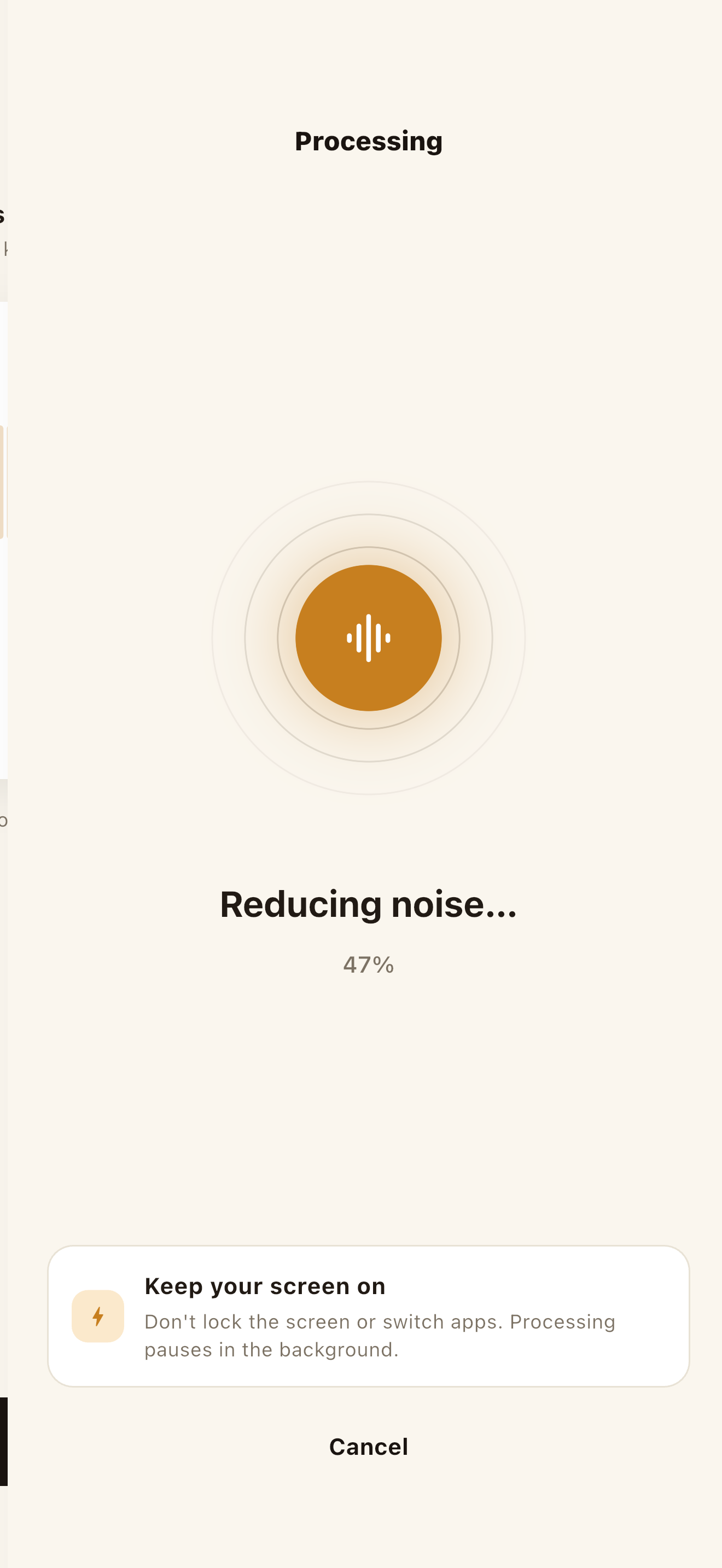
Tap Clean. The bundled model reduces the steady noise around your voice — the memo is never uploaded, and it works without internet. A typical few-minute memo finishes in seconds to a minute; keep the app open while it runs, since locking the screen or switching apps can pause processing.
A/B the original against the result
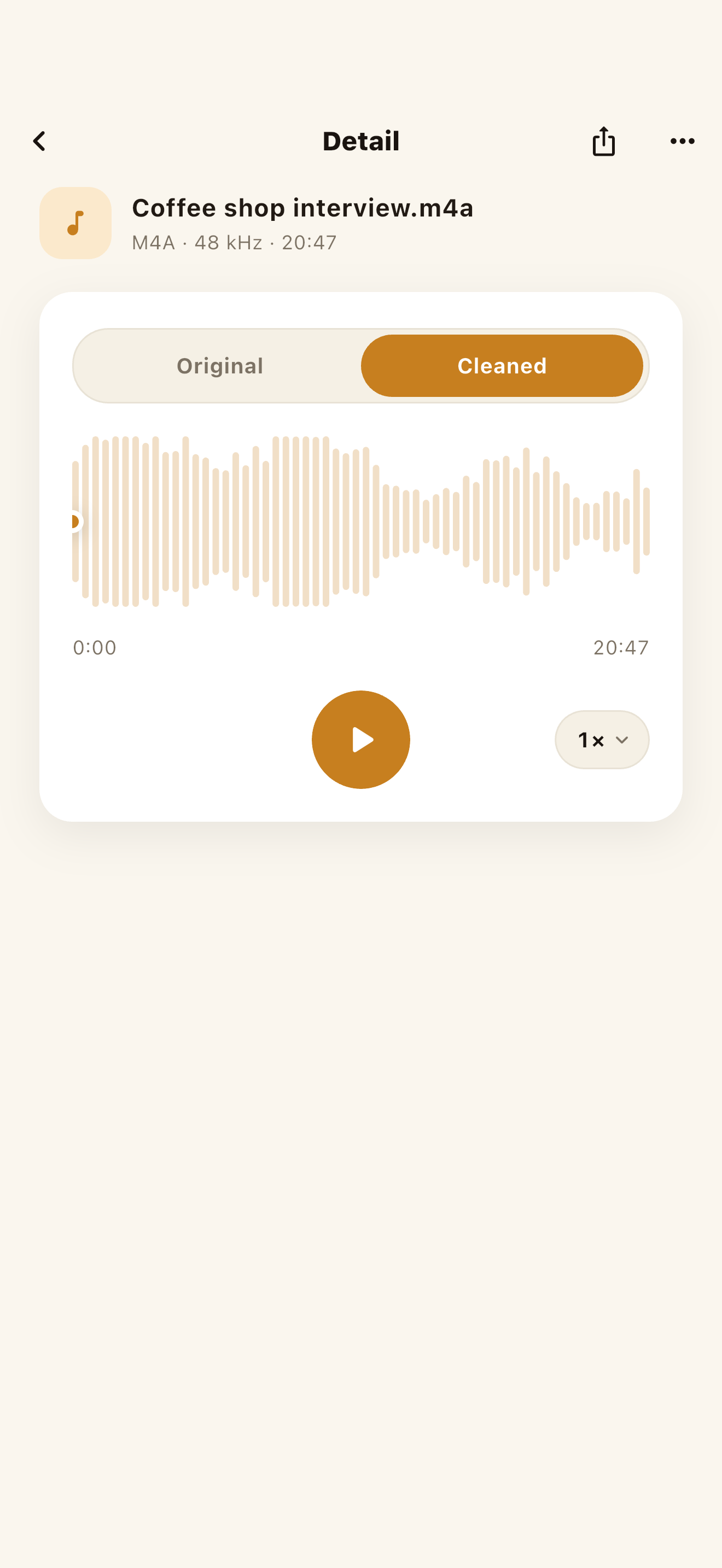
The Original / Cleaned toggle flips between the same moment instantly. Listen for two things: the noise floor dropping, and your voice staying natural — over-aggressive removal can make speech sound thin or underwater. If the cleaned version loses too much, nothing is lost: your original memo is never overwritten.
Save or share the clean memo
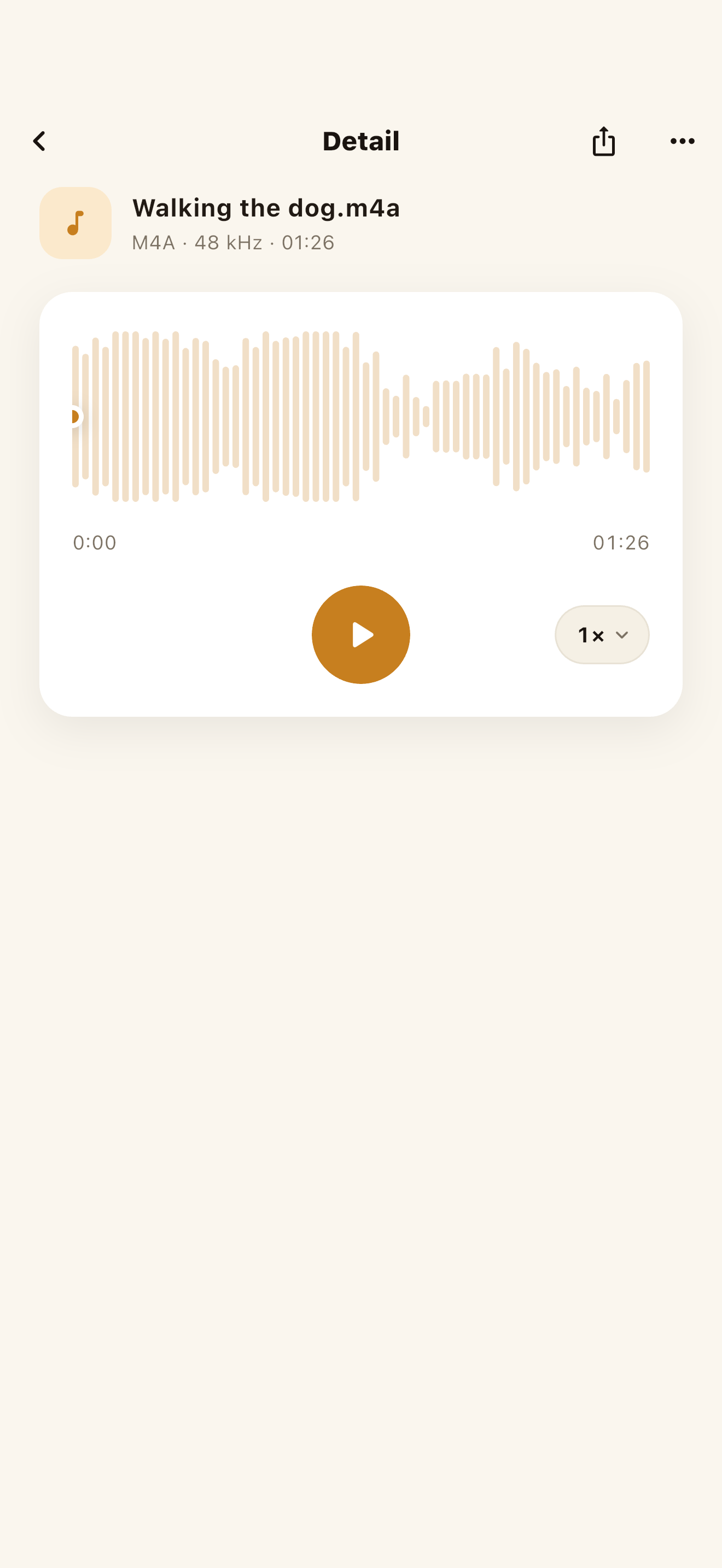
Share the result wherever the memo was headed anyway — a notes app, a message thread, a transcription app, an editor. Because there's no account and no library on someone else's server, the cleaned file lives only where you put it.
NoisyNo — Voice Noise Remover
An offline voice noise remover that reduces fan hum, hiss, wind, air-conditioning, and indoor room tone from recordings and video audio. It processes inside your phone, with no file uploads.
Why voice memos come out noisier than you expect
Voice memos are recorded in the worst acoustic conditions of any audio you own. You reach for the recorder because you're somewhere inconvenient — a cafe, a car, a walk, the back of a lecture hall. Three things stack against you:
- Phone mics are omnidirectional. They're built to catch a voice from any angle, which means they catch the room from every angle too.
- Auto-gain amplifies the quiet parts. When you pause between sentences, the phone turns the gain up — and the espresso machine comes up with it.
- You can't control the room. A studio take can be re-done; the moment you captured in a memo usually can't.
That last point is what makes cleanup-after-the-fact the right tool for memos: the recording is irreplaceable, so you fix the file you have.
Re-record it
Only works for scripted audio. The interview answer, the melody you hummed, the meeting decision — those happened once. There's no second take of a moment.
Clean the file you have
On-device denoising reduces the steady background layer under the voice. The memo stays on your phone, and the original is kept untouched next to the cleaned result.
What a cleaner memo actually gets you
Removing the noise isn't just about listening comfort. The memos people bother to clean are the ones headed somewhere else:
- Better transcripts. Steady background noise is a common cause of transcription errors. Cleaning a memo before running it through a transcription app tends to produce noticeably cleaner text — fewer misheard words, fewer dropped sentences.
- Usable interview quotes. A coffee-shop interview where the machine hiss sits under every answer becomes quotable audio instead of a chore to re-listen to.
- Study material you'll actually replay. A lecture recorded from the back row, minus the HVAC drone, is far easier to review at 1.5×.
- Voice notes worth sharing. A memo you'd apologize for ("sorry about the noise—") becomes one you just send.
The realistic limit: denoising works best on the steady layer — hum, hiss, drone, chatter, traffic wash. A door slam or a dog bark right over a word is a different problem, and a voice buried far below the noise gets helped, not rescued. The A/B toggle in step 4 is how you judge each memo honestly.
Worth knowing: your memos can be personal — the processing is local
Voice memos are among the most personal files on a phone: half-formed ideas, private reminders, other people's voices recorded with their trust. That's why it matters where the cleanup happens. Per NoisyNo's privacy policy, the file you pick and the cleaned result are processed on the device and are not uploaded to a GrayForge server. Limited diagnostics (Firebase Crashlytics, Analytics, Remote Config) may run for app quality, and these don't include file names or audio content.
The memo itself never leaves your phone for processing. Treat file processing (local) and diagnostic data (limited, no audio content) as two separate scopes.
Frequently asked questions
How do I remove background noise from an iPhone voice memo?
In the Voice Memos app, open the recording, tap the more (…) button, choose Share, and pick NoisyNo. Then tap Clean and compare the result — the whole flow runs on the phone in about three minutes, with no upload and no account.
How do I get a voice memo out of the Voice Memos app?
Use the share sheet: open the memo, tap the more (…) button, then Share. From there you can send it straight to NoisyNo, or choose Save to Files to put the M4A file somewhere any app can reach.
Can I clean up a voice memo without uploading it to a website?
Yes. NoisyNo processes the file inside your phone. The memo is not uploaded to a GrayForge server, which matters when the recording contains meetings, interviews, or personal notes.
Does cleaning a voice memo overwrite the original recording?
No. NoisyNo writes the cleaned audio as a new result you can save or share. The original memo stays untouched, so you can always go back.
Does it work with Android voice recorder files?
Yes. Android recorder apps typically save M4A or WAV files, and both work directly in NoisyNo — along with MP3, AAC, and CAF. No conversion needed.
Will noise removal make my voice memo easier to transcribe?
Usually, yes. Steady background noise is a common cause of transcription errors, so reducing it before running a memo through a transcription app tends to produce cleaner text.
Is NoisyNo free?
NoisyNo is free to download, with no accounts, no ads, and no file uploads, and noise removal is free to use. Loudness normalization is a Pro feature unlocked by a one-time in-app purchase. There is no subscription.
Rescue the memo you almost deleted.
After installing, cleaning up your first voice memo takes about three minutes. If anything's unclear, you get answers straight from the person who built it.
grayforge.dev@gmail.com