How to remove vocals from a song in VocalOut — 4 steps
The whole flow is pick → choose a mode → process → listen. No account, no upload, and no limit on how many songs you run.
Pick a song
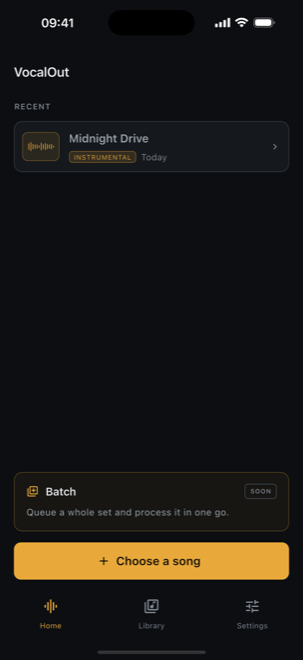
Open VocalOut and choose a song that's already on your phone. It isn't connected to any streaming service, so the track needs to be saved on the device first — a download, an export, or a file someone sent you.
Choose what to keep
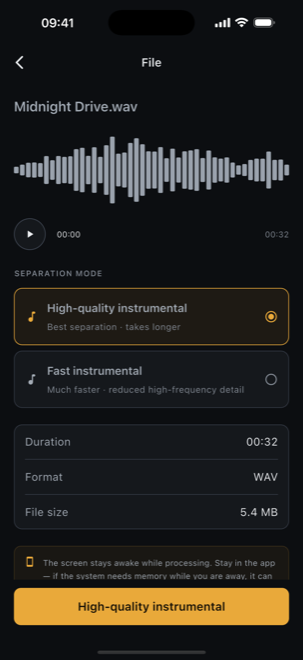
VocalOut shows the imported file with its waveform, length, and format, plus two separation modes: pull out a clean instrumental with the vocals removed, or isolate the vocal track. No sliders, no stem counts to get wrong — pick one and go.
Let it run on your device
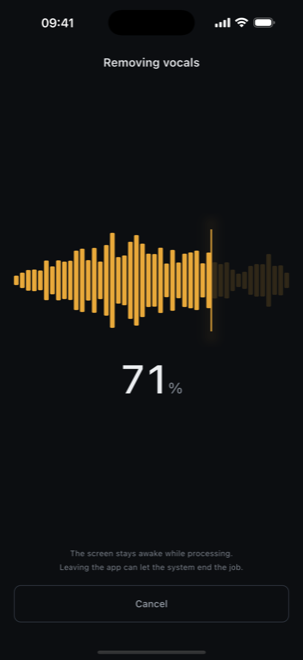
Separation happens on your phone's own processor, so there's nothing to upload and no server queue. On a plane, in a rehearsal room, or in a basement with no signal, it works exactly the same. Time depends on your device — a progress counter shows how it's going.
Listen to the result
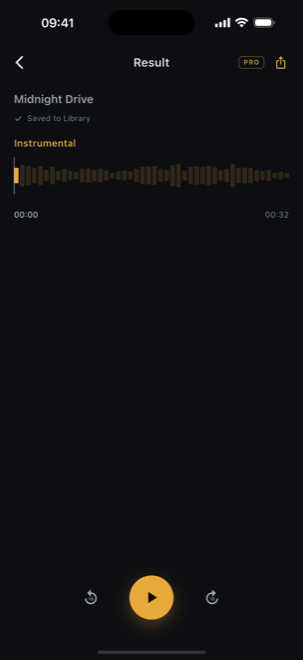
The finished track lands in your library and plays right there — scrub the waveform, skip around, replay as often as you like. Processing and playback are unlimited and free, so you know it's good enough long before you're asked for anything.

VocalOut — Vocal Remover
An offline vocal remover that turns any song on your phone into a clean instrumental backing track. The AI runs on your device — no upload, no account, and unlimited free processing.
Why doing it on your device matters
Most online vocal removers upload your whole song to a server, process it there, and hand back a file. VocalOut never does that — the AI model ships inside the app and runs on your phone, so your music never leaves the device and there's no server to wait on. That's also why there's no account, no credits, and no per-song limit.
Upload the whole song
Your track is sent to a website before it's processed — often behind a sign-up, a credit count, or a wait in the server queue.
Processed inside your phone
VocalOut runs the separation locally. The song you pick and the result never leave your device, and you can run as many as you want.
What a clean instrumental is good for
Once the vocals are gone, the backing track is yours to use:
- Practice and performance — sing or play an instrument over the original backing
- Karaoke at home, with the real track instead of a MIDI version
- Covers and video content that need an instrumental bed
- Remixes, mashups, and sampling starting from a clean stem
One thing to keep in mind: you're responsible for having the rights to the music you process. VocalOut works on files you already own on your device.
Frequently asked questions
Does my music get uploaded?
No. The AI model ships inside the app and runs on your phone, so there is no server step at all. Your music never leaves your device.
Is there a limit on how many songs I can process?
No. Processing and playback are unlimited and free, forever. Pro only unlocks exporting the result out of the app.
How long does one song take?
It depends on your device, because this is real work running on your phone, not a download. Progress is shown while it runs.
Where do the songs come from?
From files already on your device. VocalOut is not connected to any music service and cannot download or stream music, so you need the song saved on your phone first.
Is VocalOut free, and is it on iPhone and Android?
VocalOut is free to download, with no account and no credits, and processing and playback are unlimited and free. VocalOut Pro is a one-time purchase that unlocks exporting results at full 32-bit quality — not a subscription. It is available on the App Store for iPhone and Google Play for Android.
Turn a song into a backing track.
After installing, separating your first song takes a couple of minutes — and playing it back costs nothing. If anything's unclear, you get answers straight from the person who built it.
grayforge.dev@gmail.com